Setup (Devices)
Manual install of Clout App via Xcode (free Apple ID)
How to install Clout App (iOS) by hand using Xcode and a free Apple ID — the fallback flow for when the automatic install in Clout Uploader is unavailable.
A paid Apple Developer account ($99/year) removes every limitation below and lets Clout Uploader install Clout App automatically — no Xcode involved. Enroll →
This guide is the fallback path. The preferred install is via App Store Connect API — but if you're on a free Apple ID, that path isn't available, and this is how you get the device running.
What you'll need
| Requirement | Details |
|---|---|
| Mac | macOS 14 Sonoma or newer |
| Xcode | Version 15 or newer — free from the App Store |
| Apple ID | Free or paid, with 2FA already enabled |
| iPhone | iOS 17 or newer, with a Lightning / USB-C cable |
| Free space on Mac | ~15 GB (Xcode + build artifacts) |
Windows users. Xcode only exists on macOS — manual signing on Windows is not possible without a Mac (or a macOS VM). Sideloadly, AltStore and similar tools will not work either: Clout App needs a signing flow those tools don't support. Free-tier installs require a Mac with Xcode.
Limits of a free Apple ID
| Limit | What it means in practice |
|---|---|
| Signing valid for 7 days | After 7 days Clout App stops launching. Fix: hit Product → Test in Xcode once a week — takes 1–2 minutes. |
| Max 3 apps per Apple ID per device | If you already have 3 sideloaded apps installed, remove one before installing Clout App. |
| One Apple ID = one install | If you run several iPhones, plan to use a different Apple ID per device — or just go paid. |
Install, step by step
Prep the iPhone
- On the iPhone, open Settings → Privacy & Security → Developer Mode and toggle it on.
- The iPhone will prompt to restart — confirm.
- After it reboots, unlock the phone and tap Turn On in the confirmation dialog.
Why: without Developer Mode, iOS refuses to launch any app signed with a development certificate.
Add your Apple ID to Xcode
- Open Xcode and go to Xcode → Settings → Accounts (
⌘,). - Click
+in the bottom-left → Apple ID → enter your Apple ID and password. - Once added, the right panel shows Personal Team with your name — that's the free signing team.
If 2FA is enabled, Apple will push a code to your trusted device — enter it.
Download the Clout App project
- In Clout Uploader open the Devices tab.
- Expand the Sign via Xcode Manually section.
- Click Download Xcode Project — a ZIP archive lands in your Downloads folder.
- Double-click to unzip.
Open the project in Xcode
- Inside the unzipped folder, find
RodmanRunner.xcodeproj. - Double-click it — Xcode loads the project.
- Wait until Xcode finishes indexing (the progress bar at the bottom finally goes idle).
Pick your signing team
This is the most common place to slip — you need to do it for both targets in the project.
- In the left sidebar, click the blue RodmanRunner project icon at the very top of the tree.
- In the center pane, switch to the Signing & Capabilities tab.
- In the targets list, pick the first target:
- Make sure Automatically manage signing is on.
- In the Team dropdown, pick your Personal Team (Free).
- Now pick the second target and do exactly the same — same team.
If you see "Bundle ID is not available" or similar
Free Apple IDs can't reuse a bundle ID that's already taken by someone else. Fix:
- Switch to the General tab (next to Signing & Capabilities).
- In Bundle Identifier, change the value to something unique in the format
com.<randomteamid>.RodmanRunner— pick any short random string for<randomteamid>(e.g.com.k7m2p9.RodmanRunner). - Repeat for both targets — the second one's bundle ID must use the first one as a prefix (Xcode will warn you if it doesn't).
Plug in the iPhone
- Connect the iPhone to the Mac with a cable.
- On the iPhone, tap Trust on the "Trust This Computer?" prompt and enter the passcode. Sometimes iOS skips this dialog — if it doesn't appear at all, that's also fine, the device is already trusted by this Mac.
- In Xcode's top bar, click the device dropdown next to the scheme (it may currently say "Any iOS Device" or a simulator name).
- Under iOS Device, pick your iPhone.
If the iPhone doesn't show up — replug the cable, unlock the phone, or restart Xcode.
Build and install
- From the Xcode menu, pick Product → Test (or hit
⌘U). - Xcode starts building — typically 30–60 seconds.
- Dialogs may pop up on the iPhone during the build — leave the phone unlocked and don't unplug the cable.
- When the build is done, Xcode will try to start the test on the iPhone — it's normal that the test "fails" after a few seconds. What matters is that the app got installed.
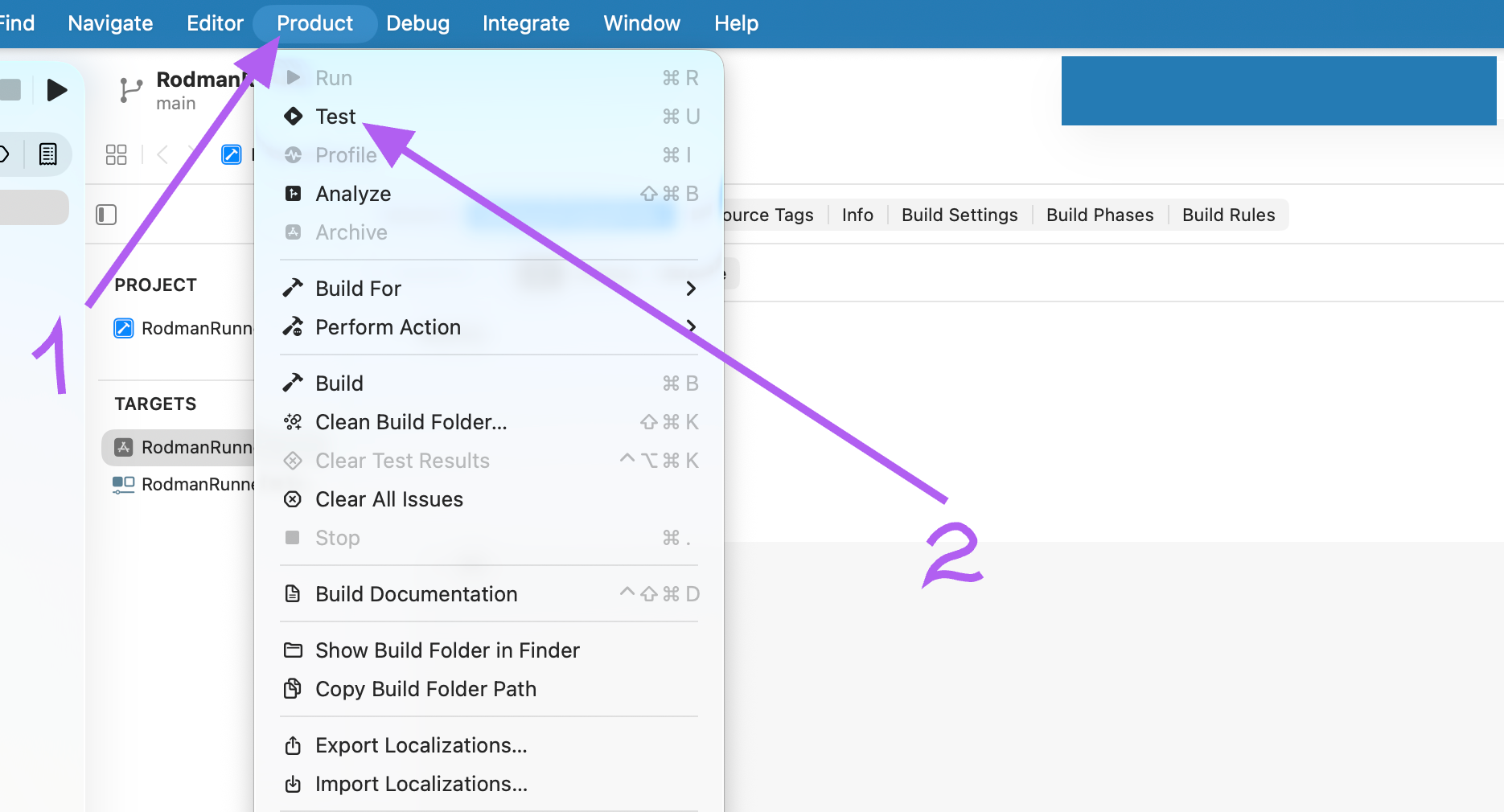
Product → Test in the Xcode menu (or ⌘U).
Trust the developer on the iPhone
The first time the app is installed, iOS doesn't trust the dev certificate — you have to allow it by hand.
- On the iPhone, open Settings → General → VPN & Device Management.
- Under Developer App, tap the row with your Apple ID.
- Tap Trust "<Apple ID>" and confirm.
- Find the RodmanRunner icon on the home screen and launch it once — it'll open on a blank white/black screen, that's expected.
- Close the app (swipe up).
The blank screen is normal. Clout App has no UI of its own — it's only a wrapper that Clout Uploader uses to control and automate TikTok on your phone. After this one-time tap-to-launch you won't need to open it again; Clout Uploader takes over from there.
Verify in Clout Uploader
- Go back to Clout Uploader, Devices tab.
- Hit refresh — the device should now appear in the Connected Devices list with a green dot, the iPhone model and iOS version, and a green Clout App (iOS) badge on the right.
- Start a test thread — if it runs, the install is good.
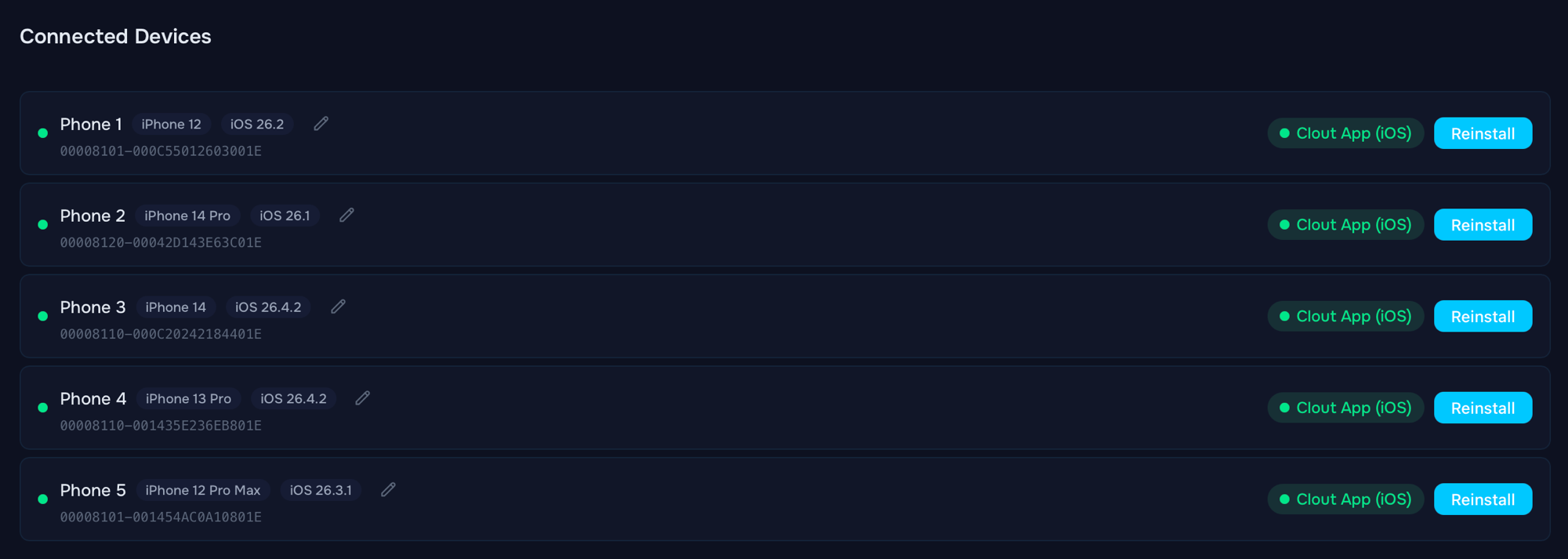
Connected Devices list with Clout App (iOS) installed on five iPhones.
What to do every 7 days
Signing on a free Apple ID is valid for exactly 7 days. When the certificate is about to expire, Clout App stops launching — Clout Uploader will show a Clout App connection error.
How to refresh it (1–2 minutes):
Plug the iPhone into the Mac.
Open the same RodmanRunner.xcodeproj in Xcode.
Pick the iPhone in the device dropdown.
Hit Product → Test (⌘U).
Xcode resigns the app with a fresh certificate and it works for another 7 days.
Tired of the weekly refresh? A paid Apple Developer account ($99/year) extends signing to one year and lets Clout Uploader handle resigning automatically.
Common problems
| Symptom | Fix |
|---|---|
| "Could not launch RodmanRunner" / "Untrusted Developer" | Step 8 (Trust Developer) wasn't done. Settings → General → VPN & Device Management → trust the developer. |
| "Failed to register bundle identifier" | The bundle ID is taken. Go back to step 5 and pick a unique Bundle Identifier. |
| "Maximum App ID limit reached" | Free Apple IDs are capped at 10 unique App IDs every 7 days. Either wait it out, use a different Apple ID, or move to a paid account. |
| Xcode doesn't see the iPhone | Unlock the phone and re-confirm "Trust This Computer". Try a different USB cable — needs to be a data cable, not charge-only. As a last resort, restart Xcode and the Mac. |
| "This device has reached the maximum number of installed apps" | The iPhone already has 3 apps signed with your free Apple ID. Remove one and try again. |
| Build is slow or seems stuck | A typical build is 30–60 seconds; on a slow Mac it can stretch to a few minutes. If it's been longer than that, quit Xcode, delete ~/Library/Developer/Xcode/DerivedData, and try again. |
A few more things
- Security. Clout App (iOS) is a local helper that drives TikTok on your iPhone for Clout Uploader. It doesn't send data anywhere — it only talks to Clout Uploader on your own machine.
- Several iPhones. Repeat steps 6–8 for each device without re-doing the project setup. One Apple ID covers up to 3 devices.
- Switching Apple ID. If you change Apple ID later, hit Switch developer account in the Devices section of Clout Uploader — that clears the old signing cache.
Related guides
- Prepare your devices — the one-time host and iPhone setup that should be done first.
- Install via App Store Connect API — the preferred install flow once you move off the free Apple ID.
- Upload mode — running your first publishing session once the device is ready.
Install via ASC API
How to authorize, sign, and install Clout App (iOS) on your devices using App Store Connect API keys — no Apple ID password, no 2FA prompts.
Adding accounts
Create account lists in Clout Uploader, log TikTok accounts in on the iPhone, and run up to 8 accounts per device — TikTok's native multi-account limit.